App ID · Verify against the specified App Store product page
Genuine App Store app · Official manual
Shadowrocket User Guide and Rules Setup
A rule-based proxy client for iPhone and iPad, with rule-based routing and a one-time purchase.
- Global Routing
- Config
- DOMAIN-SUFFIX
- FINAL
- Get the app
- App Store
- App ID
- 932747118
- Purchase type
- One-time purchase
- Policy
- PROXY / DIRECT / REJECT
Rules are matched in order; the most specific rule does not automatically take priority. In this example, ads.example.com is matched first by the DOMAIN-SUFFIX rule. To apply REJECT, move the relevant DOMAIN rule above the broader rule. This diagram explains rule order; it is not a ready-to-use configuration.
Device compatibility and getting Shadowrocket from the App Store
Shadowrocket is available only on Apple platforms, and the App Store is the only place to get it. Check the product page, device compatibility and purchase details first. System requirements are listed on the App Store page.
iPhone
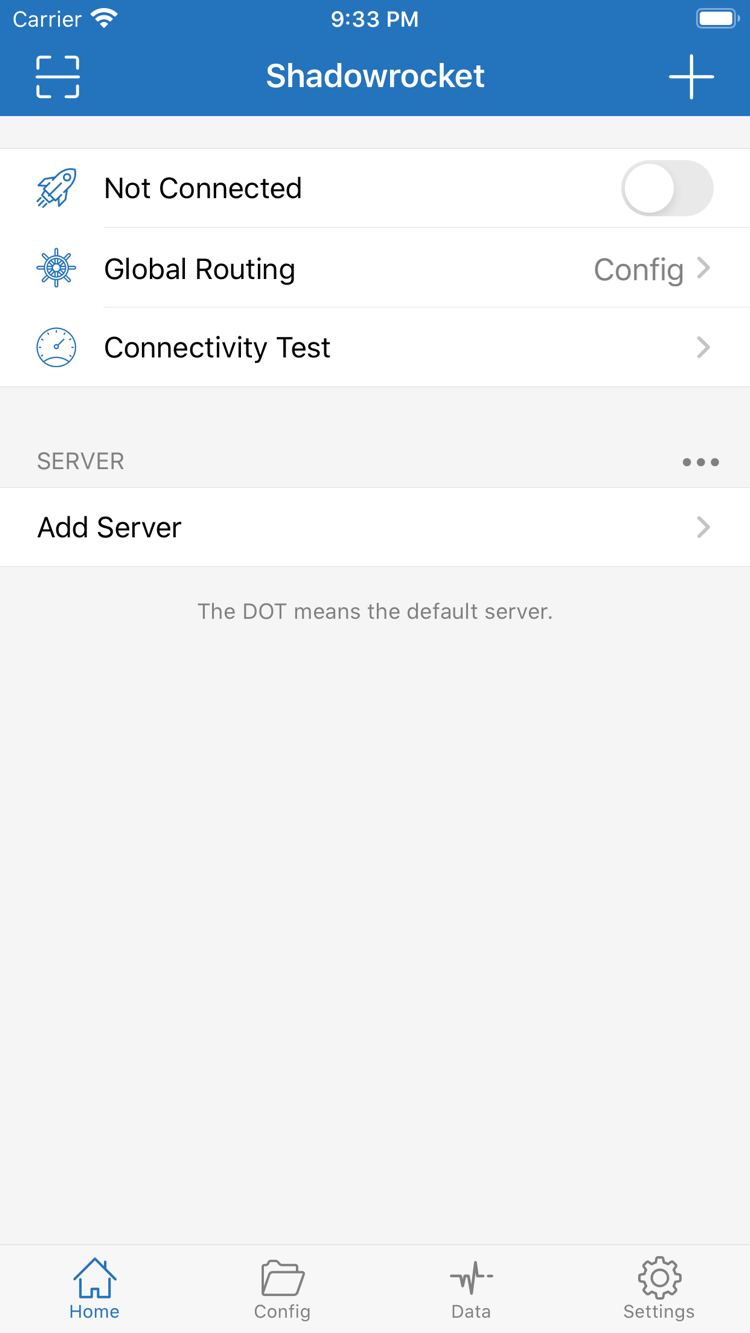
After purchasing and installing from the App Store, start setup from Home. On the first connection, iOS may ask to add a VPN configuration. Read the prompt and authorize it only if it was triggered by your action. This creates a connection configuration on your device; it does not generate server details.
View the iPhone purchase guide →iPad
Use the Apple Account you purchased with to check your purchase history and the App Store listing, then follow the prompts on your device. Purchase eligibility for iPhone and iPad is listed on the App Store page. Purchase history and configuration are separate: after reinstalling the app, check that your existing connection details are still available.
View the iPad purchase guide →Whether the app appears in the store, payment can be completed and the purchase applies to your device depends on the storefront, account status and device requirements. If search results differ, check the specified product page and confirm the app ID. Don’t rely on a shortened name or similar icon alone.
View the steps to get the app →Features and configuration basics
Connection details determine how to reach an existing server. Global Routing determines how requests are handled, while rules in Config determine the policy for each request. Understanding these layers before changing individual settings makes troubleshooting more straightforward.
DOMAIN-SUFFIX,example.com,PROXYPolicies follow rule order
Rule routing lets different requests use different policies. Check the rules in Config, select Config under Global Routing, then review how the file handles each request. Rules are checked from top to bottom, stopping at the first match, so exceptions for individual domains belong above broader rules. PROXY uses the selected proxy policy, DIRECT connects to the destination directly, and REJECT blocks the request. FINAL handles requests that match no earlier rule. After making changes, check which rule actually matched—not just whether the changes were saved.
DOMAINIP-CIDRFINAL
Read about rule routing →
Settings → On DemandSeparate connection triggers from request policies
On Demand starts a connection when its configured conditions are met; it does not replace the request-matching rules in Config. For an initial setup, first connect manually and confirm the server details, mode and access results. Then review the On Demand conditions in Settings. After changing networks, check separately whether a connection starts and which policy handles each request. If the connection starts again automatically, check the trigger conditions rather than repeatedly turning off the Home switch. Keep a record of the original settings so you can restore them during troubleshooting.
On DemandSettings
Read about On Demand →
Add Server → TypeChoose Type to match your existing server details
Support for multiple protocols lets Shadowrocket connect to different types of existing servers. Changing Type alone does not convert the server’s protocol. In Add Server, choose the matching type—such as Shadowsocks, VMess, VLESS or Trojan—based on your existing server details, then check the address, port and authentication fields. TLS, SNI and transport settings must also match the server; don’t infer them from the protocol name. Speed and battery use also depend on network quality, connection count and the data being transferred. The protocol reference explains the relevant fields and trade-offs.
ShadowsocksVMessTrojan
Read the protocol reference →
Add Server → SubscribeImport and manage existing subscriptions
Subscribe retrieves server entries from a subscription URL you already have. Before importing, check that the link is complete, still valid and compatible with the client. Don’t enter a subscription URL in the address field for an individual server. If an update fails, distinguish between an inaccessible link, a response that isn’t a subscription and incomplete entry details. A successful import only confirms that content was retrieved at that time; it doesn’t guarantee that every entry will connect. Subscription URLs may contain credentials, so redact sensitive information when troubleshooting and never share the full URL publicly.
SubscribeAdd Server
View the steps for importing an existing subscription →
Global Routing → ConfigSeparate file contents from the active selection
Config manages rules and related settings. Check these as separate states: the file has been imported, the file is selected, and Global Routing is set to Config. Before editing, keep a recoverable copy. Then adjust rules, DNS or other settings one at a time to avoid changing multiple variables at once. When moving to a new device, check what is preserved by exporting Config and using iCloud sync; sync alone does not guarantee a complete restore. Files may contain server details or credentials, so verify their contents after migration and remove personal information before sharing.
ConfigRuleiCloud
Read about managing Config →
Connectivity Test / Data / DiagnosticsUse test results to investigate specific requests
Connectivity Test, Data and Diagnostics in Settings help check connection status from different angles. A successful test does not mean every destination is reachable, and traffic shown in Data does not confirm that requests used the expected policy. When troubleshooting, note your current network, selected entry, Global Routing mode and the specific destination that failed. Then check the test results and relevant records. Change one condition at a time and retest the same destination. This helps distinguish server connectivity, DNS resolution, rule matching and the destination’s own response, rather than drawing conclusions from a single number.
Connectivity TestDataDiagnostics
Read the diagnostics and troubleshooting guide →
The three Global Routing modes
Config mode uses the rules in the current configuration to handle requests. Proxy mode handles requests using the Proxy policy, while Direct mode connects directly to destinations. Changing modes won’t fix an incorrect server password or fill in missing protocol fields. If the connection switch is on but results are unexpected, check the current mode, selected server and rules instead of assuming the connection switch is the problem.
Subscriptions and configuration files serve different purposes. Subscribe manages existing server entries; Config organizes rules and related settings. Both can be imported, but they are checked in different places. Importing a subscription does not mean the right Config is selected, and saving a configuration file does not confirm that your server details work. Check each item separately to identify what needs attention.
App purchase · Current price shown on the App Store page
Only place to get the app · Purchase, installation and updates
How to use Shadowrocket: three checks
These steps assume you already have your own subscription or server details. Verify a single connection first, then add rules, automatic triggers and other settings. Keep a working copy of your configuration so you can compare results before and after changes.
Step 01 · Add Server
Add your existing connection details
To add details manually, choose Type first, then check the address, port and authentication fields. To use an existing subscription, import it through Subscribe. If you use Scan QR Code, make sure the code contains connection details you already have. After importing, verify the key fields instead of relying on the entry appearing in the list.
A server remark is just a label for identification, not a protocol type. If a service provides several sets of details, use one complete set. Don’t mix ports, passwords or transport settings from different entries.
Step 02 · Global Routing
Check the mode and configuration
In Home, check the selected entry, then confirm Global Routing. To apply rules, choose Config and verify which configuration file is in use. If you’re comparing modes temporarily, note the original selection and restore it when you’re done.
Don’t import a large set of custom rules before verifying the server connection. Establish a reliable baseline first, then check the order of specific rules, broader rules and FINAL to identify which layer is causing a problem.
Step 03 · Connectivity Test
Test requests after connecting
Turn on the connection switch in Home and approve the VPN configuration when prompted by the system. Then run Connectivity Test and visit a destination you use. Check Data and relevant records to see whether requests are handled as expected.
If the test fails, note what happened: whether the connection could not be established, only some destinations failed or the wrong rule was applied. Change one condition at a time and retest the same destination. The system’s connection status only reflects the connection layer; it does not replace a full access check.
Verify the app, purchase it and restore your configuration
This is the Shadowrocket website and official manual. Shadowrocket is a closed-source commercial app. Product details, price, compatibility and purchase eligibility are listed on the App Store page. Before purchasing, verify the developer, official icon and app ID.
Verify the app with three details
Open the specified App Store product page and check that the developer is Shadow Launch Technology Limited. Compare the listing with the official icon used in this site’s header, then confirm the link contains id932747118. A similar name or icon alone is not enough; all three details should point to the same product page.
If you found the app through store search, open its product page and check each detail rather than relying on the shortened name in search results. The app ID identifies the specific product; it is not a version number and does not indicate whether your device meets the system requirements. Check compatibility separately in the relevant section of the App Store page.
The one-time purchase covers the app
Buying the client does not buy a service plan. The US storefront lists the price as $2.99; other storefronts show local currency. Check the App Store page for the current price. Purchasing the app gives you the right to use the client; it does not create a subscription URL, server account or working connection details.
This site does not provide, sell or recommend servers or subscriptions. The import, scanning and manual entry instructions in this guide are for managing your own existing subscription or server details. Check the original service information for its validity, access and parameter changes; repurchasing the client will not resolve those issues.
Store availability and purchase history
Search results and payment status may vary by account region, storefront and device. If you can’t find the app, check the account currently used by the App Store and the information on the product page. If a purchase button appears, check your purchase history before paying again. Follow Apple’s prompts and policies for account-related actions.
To restore a purchase on iPhone or iPad, check the App Store purchase history using the original purchasing account. Purchase eligibility, Family Sharing and other conditions for these devices are listed on the App Store page. Reinstalling the app does not automatically restore your previous configuration or all personal data.
Check updates and device migration separately
Update the app through the App Store; refer to the store page for update details. Before making major configuration changes or moving to a new device, check that you can retrieve your existing connection details. Keep a copy of any Config files you need, then check your iCloud sync settings and confirm what actually synced. Enabling sync does not guarantee a complete backup.
After installing on a new device, check your server list, current Config, Global Routing and connection authorization in that order. Configuration files may contain sensitive information, so store them securely. If you need help, describe the issue and share only the necessary details; redact subscription credentials, passwords and personal information.
Configuration guides and where to start
After verifying your first connection, choose a guide based on the issue you’re working on. For a device migration, check what your backup includes. For manual protocol setup, verify each field. If you can’t find a setting, check the interface terms. The three guides below cover these common situations; you don’t need to change every setting in a fixed order.
Move Shadowrocket to a new device: iCloud sync, Config export and restore steps
Keep restoring the app purchase separate from restoring personal configuration. Check your backup, migration and restored settings in order. Confirm that server entries, rule files and the current mode are all present, then test the connection on the new device. Don’t assume migration is complete based on a file name alone.
Read the migration guide →Add a Trojan server in Shadowrocket: protocol basics and Address, Port, Password and SNI settings
Use your existing server details to check each Trojan setting, distinguishing the connection address, authentication and TLS options. Fields can look complete and still be inconsistent. Compare them with the original details instead of turning off validation as a substitute for troubleshooting.
Read the parameter guide →Shadowrocket interface terms: Home, Config, Proxy, Direct, Data and Settings explained
The guide keeps interface labels in English and explains what each section manages. Find server management, configuration selection and diagnostics first, then learn how the modes differ. This helps avoid confusing interface sections with policy keywords or connection status.
Read the interface guide →